Apple Watch Wrapped 2026: how to see your year in fitness
Apple doesn't make a year in review for the Apple Watch: there is no Wrapped in the Fitness app. You can piece a few yearly numbers together in Health and Fitness, or let FitnessStats turn the workouts already stored in Apple Health into a two-minute story about your 2026. The 2026 Recap is free until January 31, 2027.
What Health and Fitness already show
Apple’s apps keep every workout your Apple Watch records, but they don’t tell the story of your year.
- Health shows each metric on its own. Open steps, walking and running distance or active energy, choose Y, and you get twelve months as a chart, mostly as daily averages rather than yearly totals.
- Fitness compares your last 90 days with the past year in Trends, keeps your badges in Awards, and lists every workout in your history.
What you won’t find is the year in one place: how many workouts you did, how many hours you trained, how far you went in each sport, your best month, your longest streak and your standout sessions. Adding that up by hand means scrolling through hundreds of workouts.
See your 2026 in two minutes
FitnessStats reads the workouts saved in Apple Health, whichever app or device recorded them, and builds your Recap on your iPhone.
- Install FitnessStats and allow it to read your workouts from Apple Health.
- From December 1 to January 31, your year shows up as a card on the dashboard: Your year so far in December, Your year in review in January. The rest of the year, tap Recap in the dashboard toolbar and pick a year.
- Tap through the story, one card at a time.
The story covers:
- Your year in motion: your workouts and the number of days you were active.
- Workouts, month by month, with your best month of the year.
- Total time: your hours of effort, month by month.
- Distance: the kilometers or miles in your legs, compared with marathons, laps of Central Park or trips around the Earth.
- Energy burned: the active calories of all your workouts, counted in large pizzas.
- Elevation: everything you climbed, counted in Eiffel Towers, Mont Blancs or Everests.
- Top activities: the sports you came back to most.
- Your longest streak: the most days in a row with a workout, and how many days of the year you were active.
- Standout sessions: your longest workout, your farthest one and your biggest climb.
- Heart Rate Zones: where your effort lived, for workouts recorded with heart rate on iOS 27.
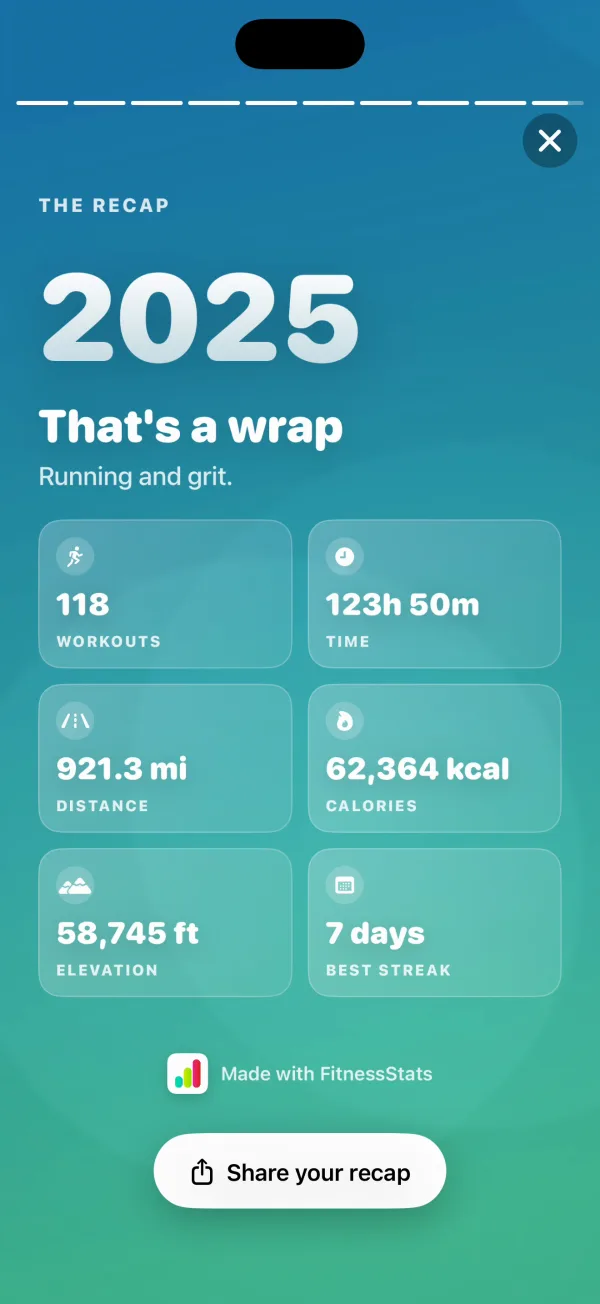
- That’s a wrap: one summary card with the numbers of your year.
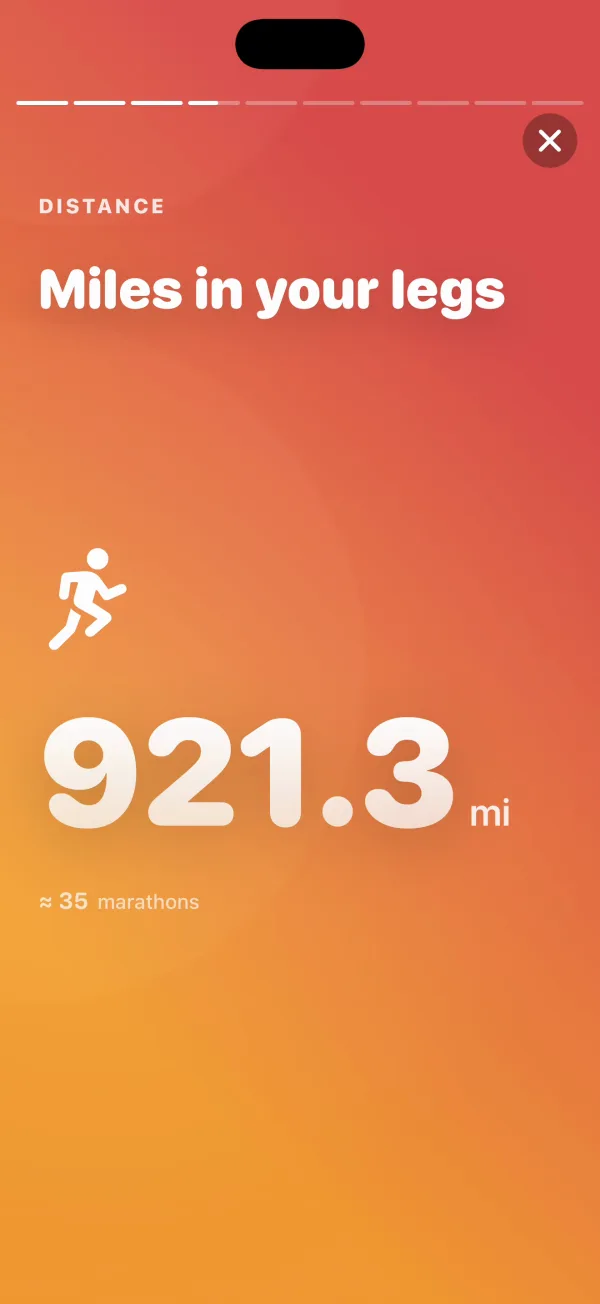
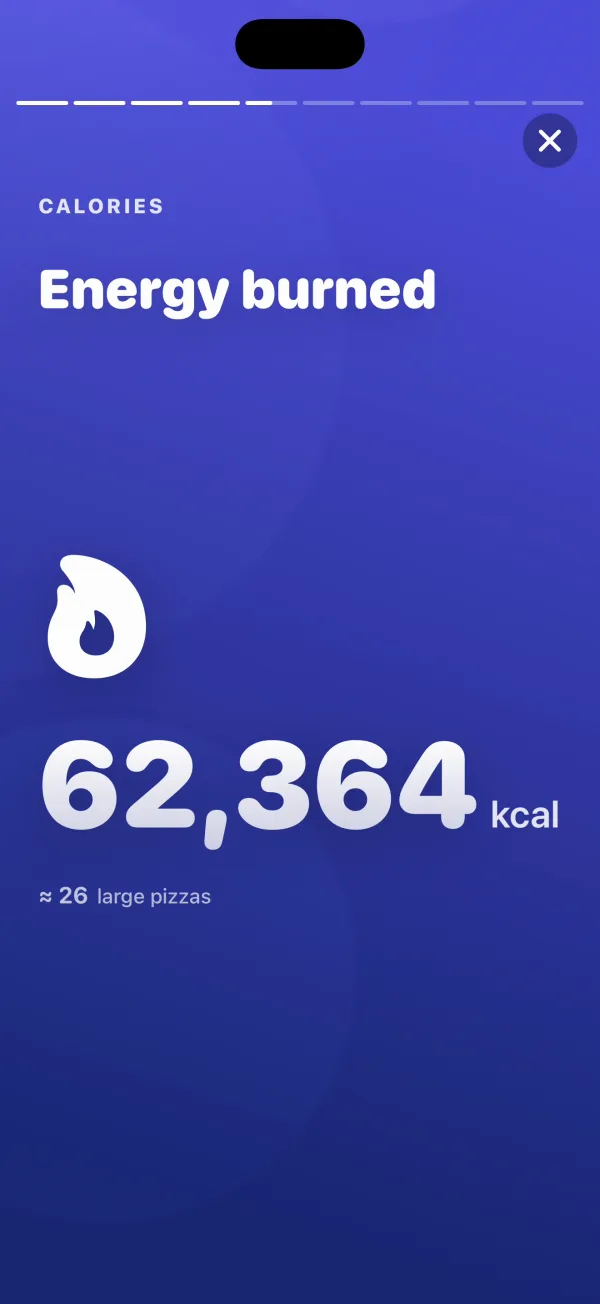
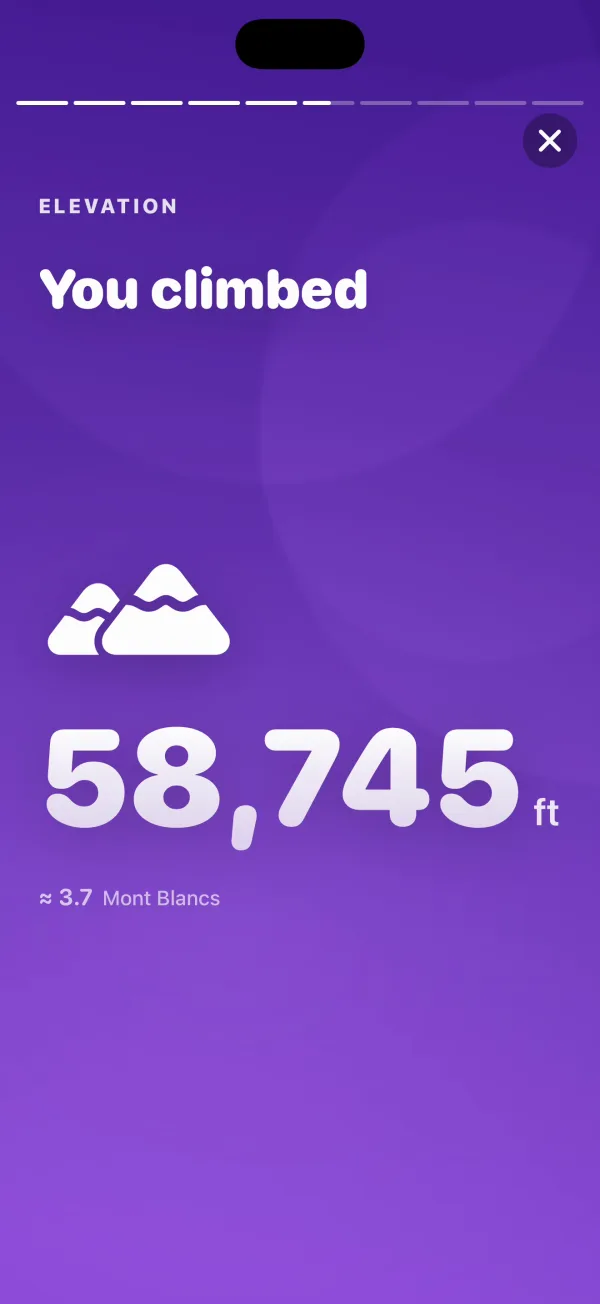
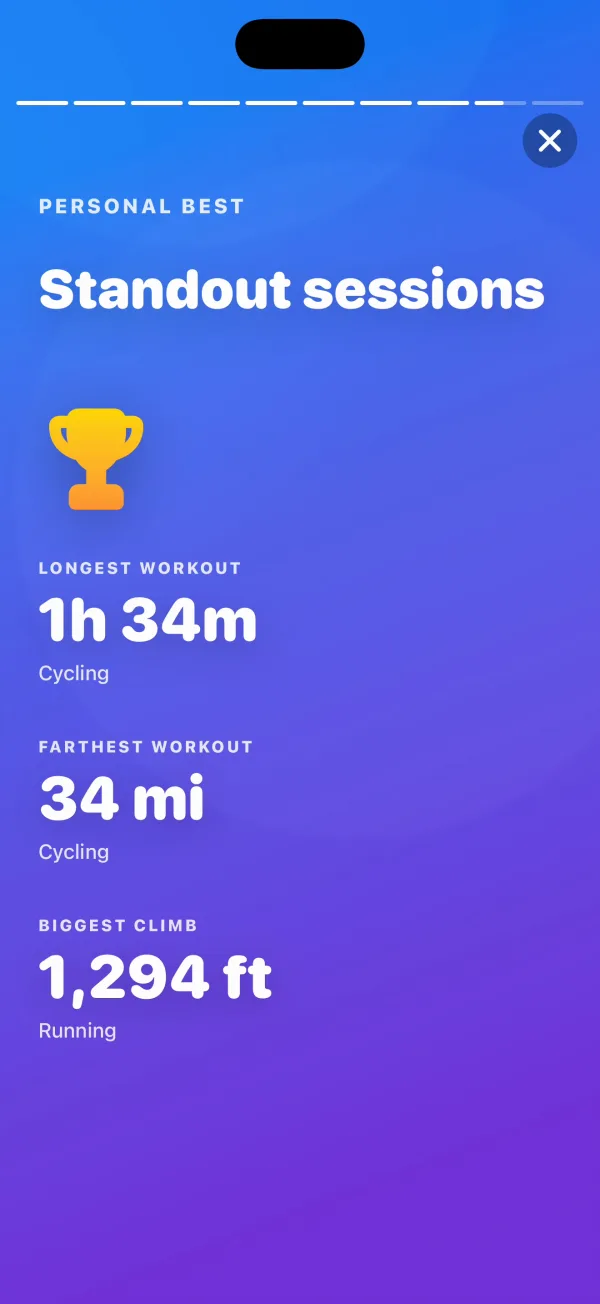
Share your year
The last card is made to be shared. Tap Share your recap to post your year to your Instagram story or send it to friends.
To go further, open your favorite workout of the year and share it on its own, as an image or as a video where your route draws itself on a map or a satellite view.
Go further: past years and an AI review
Your 2026 Recap is free. If Apple Health holds older workouts, the story ends by showing how many are waiting in past years. FitnessStats Premium, a one-time purchase, unlocks the Recap of every year.
You can also hand your year to ChatGPT, Claude or Gemini. Export to AI, in your profile, copies a summary of your workouts with a ready-made request: an analysis of your progress, honest feedback on your training, or a 4-week training plan. You paste it into the assistant of your choice, and FitnessStats sends nothing on its own. Exporting a whole year is part of Premium; recent periods, like the last 90 days, are free.
Two questions worth asking after you paste:
- “Compare the first and the second half of my year. What changed?”
- “Based on this year, what should I focus on in 2027?”
If your Recap looks incomplete
FitnessStats counts what is in Apple Health, so most gaps come from there:
- Workouts from other apps: Strava, Garmin Connect, Zwift and similar apps appear only if they save your workouts to Apple Health. Check the Health setting in each of them.
- No heart rate zones: the zones card appears only when your workouts were recorded with heart rate on iOS 27.
- Limited Health history: on iOS 27 you can let an app read only your recent Health data. FitnessStats then builds the Recap from that date and says so (“Based on workouts since…”). The days before it are unknown, not counted as rest days.
Your health data stays on your iPhone
FitnessStats processes your workouts on your iPhone. It doesn’t upload or share your Apple Health data, and there is no export file to send anywhere. The Recap is built from data that already lives on your phone.
From the developer
I’m Charles-Adrien, and I build FitnessStats on my own in Paris. I mostly ride gravel around the city, and my favorite loops are on my bike rides page. The Recap is how I look back on my own year of riding.
Frequently asked questions
Does the Apple Watch have a Wrapped or a year in review?
Not from Apple. Health and Fitness show charts, trends and awards, but no recap of your year. Apps that read Apple Health, such as FitnessStats, fill that gap.
Is the FitnessStats year in review free?
Yes for 2026. The Recap of the current year is free, and the 2026 Recap stays free until January 31, 2027. Recaps of earlier years are part of FitnessStats Premium, a one-time purchase.
Do I need an Apple Watch?
No. FitnessStats reads the workouts saved in Apple Health, so workouts recorded with an iPhone app, a Garmin watch or another device count as soon as they reach Health. The app runs on iPhone.
Does it work with Strava or Garmin?
Yes, as long as Strava or Garmin Connect saves your activities to Apple Health. FitnessStats reads Apple Health, not those services directly.
Does my health data leave my iPhone?
No. FitnessStats builds the Recap on your iPhone and doesn't upload or share your Apple Health data.
When can I see my 2026 Recap?
Any time, with the Recap button on the dashboard. From December 1 a card on the dashboard brings it up, and in January it covers your complete year.
Read next
- FitnessStats: Every statistic, route map and trophy the app builds from Apple Health.
- FitnessStats 2.8: Share your workouts: Turn any workout into an image or a video where your route draws itself.
- Bike rides around Paris: The gravel loops I ride around Paris.
Relive your 2026 in a two-minute story.
